Google Classroom is the approved online learning platform in Drimoleague National School. Through using Google Classroom, pupils can find and complete tasks assigned to them by their teachers and teachers can create a range of learning activities that are engaging and varied, all supporting the work of the curriculum. Children can complete their tasks using one of the many tools on Google and these are stored automatically in the child’s Google Drive folder.
The easiest way to upload a photo or video of your child’s work is using the Google Classroom app on an iPad or your smartphone. Follow these steps:
- Download the Google Classroom app from Play Store
- Sign into Google Classroom using your child’s login details.
- Go to the assignment that has been given to your child by their teacher.

4. Go to the ‘Your Work’ box and click on ‘Add attachment
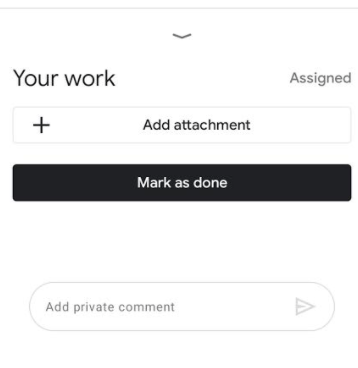
5. Now you can attach a photo of your child’s work from their book or copybook, their artwork, etc.
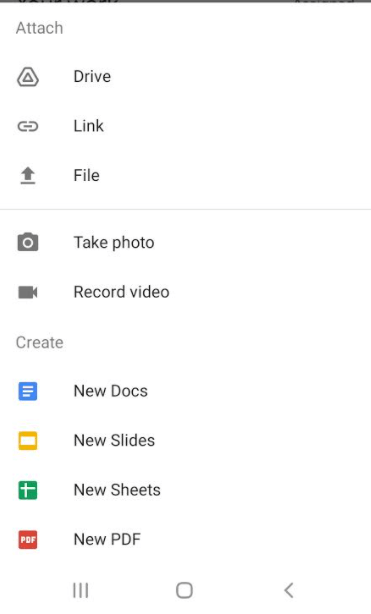
Please ensure the following when you are taking photos of your child’s work:
- Make sure photos are clear, in focus and have no shadows
- One page per photo: Take a photo of one page at a time so that the text is clear enough for correcting.
- Please make sure the photo is turned the correct way to make it more manageable to correct, and easier for children to see any comments that teachers post on their work.
6. If your child’s teacher has asked for a recording of your child reading, you can upload in the same way but using the ‘Record Video’ tab. Please ensure that your child is not visible in the video – the camera should be focussed on the book that they are reading from.
7. Don’t forget to click on ‘Mark as Done’ once the assignment has been completed. The photo will now be send to your child’s teacher via Google Classroom.
 Drimoleague National School